


The best entertainment browser

Play music in background unlimited
Wherever you go, music follows! Keep listening to music when switching tabs in Cốc Cốc, while texting or playing games in other apps, and even when your phone screen is turned off.

Enjoy music without ads
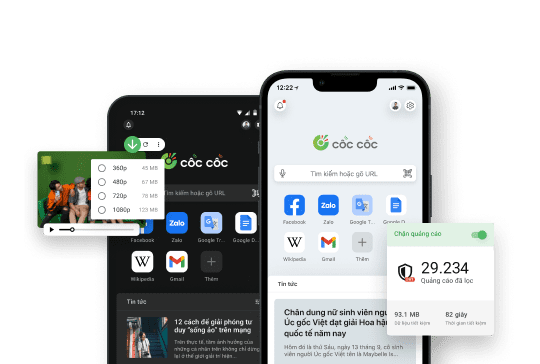
Not only does Cốc Cốc let you play music with your screen off, it also helps you enjoy ad-free music thanks to its Adblock feature. Whether you’re watching videos or listening to music, Cốc Cốc automatically blocks all interrupting ads.

No internet connection? Listen to music offline for free
Easily Download music for free or add songs to Cốc Cốc Playlist feature (iOS only). Listen to music in the background, listen to music offline, listen to music without advertising - all in Cốc Cốc.
How to play music with your screen off on mobile

Open a video
In the browser, open the video you want to listen to with the screen off.

Pin the video
Tap the Pin video icon that appears below the video.

Turn off the screen
Turn off your phone screen to continue listening to music in the background.
Download Cốc Cốc browser
Play music in background
What users say about Cốc Cốc
JB Willow
Play Store
The app has a mode that plays music even when the screen is turned off. I really like it. Coc Coc is the best, hope the app will have more users.

khongquangcao!
App Store
Watching YouTube without advertising and can turn off the screen is extremely helpful
minh vuvan
Play Store
Very good at ad blocking, listening to music when the screen is turned off feature is normal. Satisfied.
Frequently asked questions
Which apps allow to play music in background? Pros of Cốc Cốc compared to other apps?
On mobile, you can play music in background directly with Cốc Cốc browser or use other third-party apps like Pure Tuber, Musi, Float Tube, etc.
Compared to other background play apps, Cốc Cốc has the following advantages:
- Play music in background directly on the platform website, no need to use other third-party apps.
- Supported on both Android and iOS.
- Allow to play YouTube music in the background.
- Have built-in Adblock, allowing you to enjoy ad-free music in background play.
- Integrate a lot of entertainment features, allowing you to enjoy content the way you like, such as Pin video, Listen to music offline, Cinema mode.
Compared to other background play apps, Cốc Cốc has the following advantages:
- Play music in background directly on the platform website, no need to use other third-party apps.
- Supported on both Android and iOS.
- Allow to play YouTube music in the background.
- Have built-in Adblock, allowing you to enjoy ad-free music in background play.
- Integrate a lot of entertainment features, allowing you to enjoy content the way you like, such as Pin video, Listen to music offline, Cinema mode.
How to play music in the background on iPhone?
To play music in the background on iPhone, you can use Cốc Cốc browser.
Instruction 1: Use Pin video feature
1. Open Cốc Cốc on iPhone.
2. Visit the website containing the song, podcast you want to hear.
3. Tap Pin video icon on the media panel (appearing below the video player).
4. Turn off the screen and continue listening to music in the background.
Instruction 2: Use Playlist feature
1. Open Cốc Cốc on iPhone.
2. Visit the website containing the song, podcast you want to hear.
3. Tap Add button on the address bar > select a created playlist or create a new playlist.
4. Tap Browser menu icon (≡ icon) > select Playlist.
5. Play the playlist/song you want to hear > turn off the screen and continue listening to music in the background.
Depending on your preferences, you can select Shuffle, Repeat or Repeat one/Loop mode. Besides, the Playlist feature also supports Offline listening.
Read more in the article How to play YouTube music in the background on iOS.
Instruction 1: Use Pin video feature
1. Open Cốc Cốc on iPhone.
2. Visit the website containing the song, podcast you want to hear.
3. Tap Pin video icon on the media panel (appearing below the video player).
4. Turn off the screen and continue listening to music in the background.
Instruction 2: Use Playlist feature
1. Open Cốc Cốc on iPhone.
2. Visit the website containing the song, podcast you want to hear.
3. Tap Add button on the address bar > select a created playlist or create a new playlist.
4. Tap Browser menu icon (≡ icon) > select Playlist.
5. Play the playlist/song you want to hear > turn off the screen and continue listening to music in the background.
Depending on your preferences, you can select Shuffle, Repeat or Repeat one/Loop mode. Besides, the Playlist feature also supports Offline listening.
Read more in the article How to play YouTube music in the background on iOS.
How to play music with screen off on Android?
You can play music with screen off on Android phones with Cốc Cốc browser.
Instruction 1: Use Pin video feature
1. Open Cốc Cốc on your Android phone.
2. Visit the website containing the song, podcast you want to hear.
3. Tap Pin video icon on the media panel (appearing below the video player).
4. Turn off the screen and continue listening to music in the background.
Instruction 2: Use Play audio in background feature on YouTube (hidden feature)
1. At the bottom right corner, tap Browser menu icon (≡ icon).
2. Tap Settings > Languages > select Vietnamese as app language.
3. Visit 10 YouTube links.
4. Exit and relaunch Cốc Cốc app.
5. Open youtube.com on the browser.
6. Play any video you like > Tap Play audio in background icon (headset icon) on the media panel (appearing below the video player).
Read more in the article How to listen to YouTube music with the screen off on Android.
Instruction 1: Use Pin video feature
1. Open Cốc Cốc on your Android phone.
2. Visit the website containing the song, podcast you want to hear.
3. Tap Pin video icon on the media panel (appearing below the video player).
4. Turn off the screen and continue listening to music in the background.
Instruction 2: Use Play audio in background feature on YouTube (hidden feature)
1. At the bottom right corner, tap Browser menu icon (≡ icon).
2. Tap Settings > Languages > select Vietnamese as app language.
3. Visit 10 YouTube links.
4. Exit and relaunch Cốc Cốc app.
5. Open youtube.com on the browser.
6. Play any video you like > Tap Play audio in background icon (headset icon) on the media panel (appearing below the video player).
Read more in the article How to listen to YouTube music with the screen off on Android.
How to pause/play, seek or switch songs when listening with the screen off?
When listening to music with the screen off using Cốc Cốc, you can pause, seek or switch song right on the lock screen.
- Pause: Tap ❚❚ icon
- Play: Tap ▶ icon
- Seek: Drag on the progress bar to go the part you like.
- Switch song: The next songs to be played will follow the playlist or platform recommendations.
Note: To continue listen to other songs without turning on the screen, enable the Autoplay button on YouTube before you pin video and turn off the screen.
- Pause: Tap ❚❚ icon
- Play: Tap ▶ icon
- Seek: Drag on the progress bar to go the part you like.
- Switch song: The next songs to be played will follow the playlist or platform recommendations.
Note: To continue listen to other songs without turning on the screen, enable the Autoplay button on YouTube before you pin video and turn off the screen.
How to set timer when playing music in the background?
Instruction 1: Open video in Cinema mode (applied on both Android and iOS)
1. Access the link of the video you want to play in background.
2. Tap Cinema mode icon (full screen icon) on the media panel (appearing below the video player).
3. Tap More icon (⁝ icon) > select Sleep timer.
4. Select time for countdown (hours, minutes) > tap Start.
Instruction 2: Add audio to Playlist (applied on iOS)
1. Tap Browser menu icon (≡ icon) > select Playlist.
2. Play the playlist/audio you want to hear.
3. Tap More icon (⋯ icon) at the top right corner > select Sleep timer.
4. Select time for countdown (hours, minutes) > tap Start.
Instruction 3: Set timer on the background player (applied with YouTube on Android)
1. Follow the steps to "unlock" the Play audio in background feature on Android.
2. Play YouTube video > tap Play audio in background icon (headset icon) on the media panel (appearing below the video player).
3. Tap Timer icon (stop watch icon).
4. Select time for countdown (hours, minutes) > tap Start.
1. Access the link of the video you want to play in background.
2. Tap Cinema mode icon (full screen icon) on the media panel (appearing below the video player).
3. Tap More icon (⁝ icon) > select Sleep timer.
4. Select time for countdown (hours, minutes) > tap Start.
Instruction 2: Add audio to Playlist (applied on iOS)
1. Tap Browser menu icon (≡ icon) > select Playlist.
2. Play the playlist/audio you want to hear.
3. Tap More icon (⋯ icon) at the top right corner > select Sleep timer.
4. Select time for countdown (hours, minutes) > tap Start.
Instruction 3: Set timer on the background player (applied with YouTube on Android)
1. Follow the steps to "unlock" the Play audio in background feature on Android.
2. Play YouTube video > tap Play audio in background icon (headset icon) on the media panel (appearing below the video player).
3. Tap Timer icon (stop watch icon).
4. Select time for countdown (hours, minutes) > tap Start.
How to listen to music offline?
Instruction 1: Download music (applied on desktop and mobile)
1. Click Download icon (↓ icon) on the media panel (appearing above or below the video player) or on the address bar.
2. Select download file (format, audio quality) > click Download button (↓ icon).
3. Open Downloads page > find and click on the song title for offline listening.
Instruction 2: Add music to Playlist (applied on iOS)
1. Open Cốc Cốc on iPhone.
2. Visit the website containing the song, podcast you want to hear.
3. Tap Add button on the address bar > select a created playlist or create a new playlist.
4. Tap Browser menu icon (≡ icon) > select Playlist.
5. Open created playlist.
- Tap More icon (⋯ icon) at the top right corner: Choose Make All Offline
- Tap More icon (⋯ icon) beside each audio file: Choose Make Offline for each song.
Read more in the article How to listen to music offline on iPhone.
1. Click Download icon (↓ icon) on the media panel (appearing above or below the video player) or on the address bar.
2. Select download file (format, audio quality) > click Download button (↓ icon).
3. Open Downloads page > find and click on the song title for offline listening.
Instruction 2: Add music to Playlist (applied on iOS)
1. Open Cốc Cốc on iPhone.
2. Visit the website containing the song, podcast you want to hear.
3. Tap Add button on the address bar > select a created playlist or create a new playlist.
4. Tap Browser menu icon (≡ icon) > select Playlist.
5. Open created playlist.
- Tap More icon (⋯ icon) at the top right corner: Choose Make All Offline
- Tap More icon (⋯ icon) beside each audio file: Choose Make Offline for each song.
Read more in the article How to listen to music offline on iPhone.

Can't find what you're looking for?
Please visit our Support center to find instructions or chat with our staff.
Please visit our Support center to find instructions or chat with our staff.