


Download video to your device in one click
Cốc Cốc browser has built-in Fast download feature, allowing you to download video, download music directly to your device for free and 8X faster.

The best browser to download videos
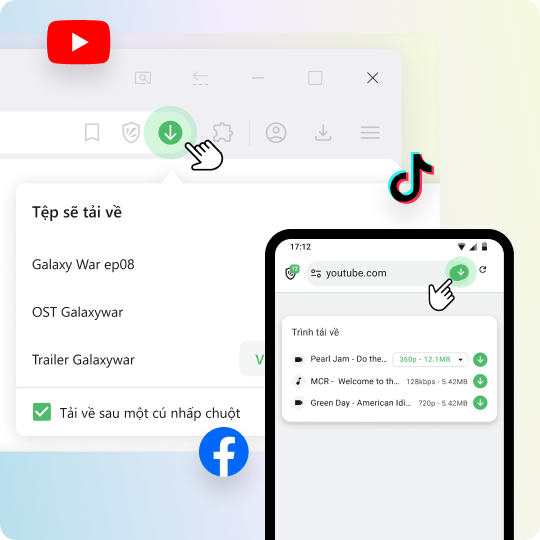
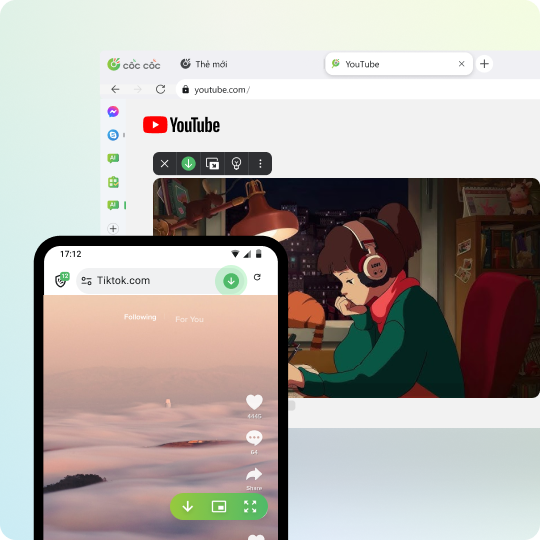
Download videos from websites & social networks
Cốc Cốc supports video downloading on most websites, including popular social networks like YouTube (on desktop & Android), Facebook, X (Twitter), Pinterest.
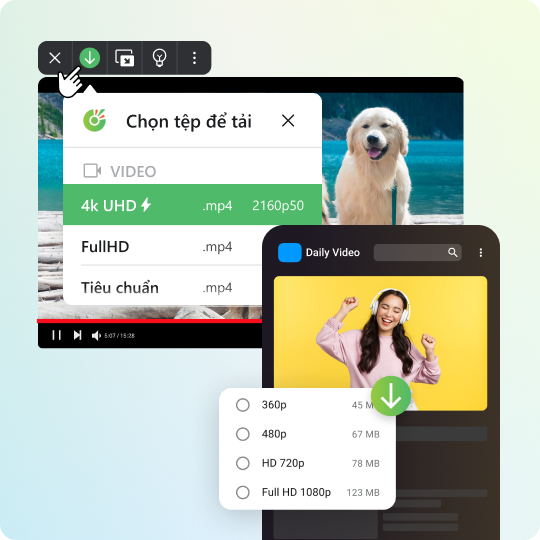
Download high-quality videos
Before downloading, you can choose your preferred video resolution. Download high-quality videos without installing any additional apps.

Download Cốc Cốc browser now to
Download videos for free "
How to download videos to your phone

Open the website containing video
Click on Download button on the address bar or media panel.

Select file to download
Choose the download format and quality.

Manage downloaded files
Open Downloads page to find, open the file, or delete it permanently.
How to download videos to your computer

Open the website containing video
Click on Download button on the address bar or media panel.

Select file to download
Choose the download format and quality.

Manage downloaded files
Open Downloads page to find, open the file, or delete it permanently.
What users say about Cốc Cốc
Anonymous
App Store
Cốc Cốc is really great, it helps download movies, blocks all ads when I surf the web.

Hani98jp
App Store
I'm using iPhone 7 Plus but the app is still running well, it helps me to download many useful videos.
Hai Nguyen
Cửa hàng Play
Has tons of killer features like media download, ad block and dark theme which are very useful. Keep up the good work.
Anonymous
Cửa hàng Play
I have tried before many apps for video download - IDM in all shapes and colors, but none of them can download as well as Cốc Cốc.
Thúy Thúy
Nhóm Facebook
I became familiar with Cốc Cốc because of video download feature. Even on computer or mobile, Cốc Cốc can download it all.
K Tapyce
Nhóm Facebook
Don't know if anyone is the same, I first used Cốc Cốc because of the video download feature. It's very convenient, and now it has become my go-to web browser.
Frequently asked questions
Why is Cốc Cốc the best browser for video download?
Compared to other browsers, Cốc Cốc browsers helps you download media files faster and more conveniently:
- Download music, video to your device completely free, no need for any third-party extensions or software.
- Downloadable on almost all websites, including YouTube, Tiktok, or Facebook.
- Support download in various formats (video file, audio file, subtitle file) and quality (4K UHS, 2K QHD, Full HD...).
- Download speed is 8 times faster than other browsers.
Cốc Cốc supports video download on which websites?
With built-in Fast download feature, Cốc Cốc helps you download any video from the web to your computer and mobile completely free and 8 times faster. You can download videos on almost any websites, including YouTube (on desktop and Android browser), TikTok, Facebook, Instagram, X (Twitter), Pinterest, Threads, Shopee, Douyin, and many more.
What is media panel?
Media panel (or Savior) is an exclusive feature of Cốc Cốc, which is especially loved by users thanks to its ability to support easy video download from the web to computer and mobile.
When you visit a website that contains music or video, media panel will automatically appear on the player, giving you the options to enjoy content the way you like.
- Desktop version: Fast download, Pin video, Lights off, Auto skip ads (on YouTube only), Download on mobile (on YouTube only).
- Mobile version: Fast download, Pin video, Background Play, Cinema mode.
Notes:
- Depending on the platform you are visiting and the browser version, supported features can change.
- You may need to customize some settings to "unlock" our "hidden" features.
Read more in the article What is Media panel? How to download video with Cốc Cốc browser.
How to download video on computer?
You can download video directly to your computer with Cốc Cốc browser by following these steps:
- Instruction 1: Using media panel
1. Open Cốc Cốc and access the video link you want to download.
2. Click Download button (↓ icon) on the media panel. If you don't see the media panel, hover the mouse over the video player to show it.
3. Select the download file (format, quality).
- Instruction 2: Using Download button on the address bar
1. Open Cốc Cốc and access the video link you want to download.
2. Click Download button (↓ icon) on the address bar.
3. On the dialog box, select the download file (format, quality) > click Download button.
Note: You can select Preferred media quality and tick in the box Download in one click. Then, for your next download, you only need to click Download button once to download video to your computer.
How to download video on mobile?
On mobile, you can also easily download video to your phone, tablet with Cốc Cốc browser by following these steps:
1. Open Cốc Cốc and visit the video link you want to download.
2. Tap Download button (↓ icon) on the media panel (appearing on the video player) or on the address bar.
3. Select the download file > Tap Download button (↓ icon).
Notes:
- Depending on the website and browser version for Android or iOS, supported file formats and the final step download can change.
- For Android version, you may need to customize some settings to "unlock" the Download YouTube video feature.
Read more in the article Tips to use Cốc Cốc browser for Android.
How to directly download video mp3 with Cốc Cốc browser?
On the computer, you can download video mp3 directly with Cốc Cốc browser by following these steps:
1. Open Cốc Cốc and access the video link that you want to download mp3.
2. Click Download button (↓ icon) on the media panel (appearing on the video player) or on the address bar.
3. Select Audio file format and preferred quality.
On mobile, you can download video mp3 directly from some websites with Cốc Cốc browser for Android by following these steps:
1. Open Cốc Cốc and access the video link that you want to download mp3.
2. Click Download button (↓ icon) on the media panel (appearing on the video player) or on the address bar.
3. Select Audio file format and preferred quality > tap Download button.
Note: For iOS, Cốc Cốc currently does not support video conversion or download in audio format (.mp3).
1. Open Cốc Cốc and access the video link that you want to download mp3.
2. Click Download button (↓ icon) on the media panel (appearing on the video player) or on the address bar.
3. Select Audio file format and preferred quality.
On mobile, you can download video mp3 directly from some websites with Cốc Cốc browser for Android by following these steps:
1. Open Cốc Cốc and access the video link that you want to download mp3.
2. Click Download button (↓ icon) on the media panel (appearing on the video player) or on the address bar.
3. Select Audio file format and preferred quality > tap Download button.
Note: For iOS, Cốc Cốc currently does not support video conversion or download in audio format (.mp3).
How to download movie in high quality?
You can freely download movies on the web at high resolution using Cốc Cốc browser. Before you download, simply select the video file with your preferred resolution. However, please note that the highest download quality depends on the quality of the movie that the owner or website posted. Particularly, you can also directly download movie in high quality shared in torrent format thanks to built-in Torrent download feature on Cốc Cốc desktop browser.
Where is my downloaded video saved?
- On computer: Videos will be saved in the default download folder or the download folder that you select right before downloading the file. To find the folders where you saved your downloaded videos, please follow these steps:
1. Open Cốc Cốc on your computer.
2. At the top right corner, click the Downloads icon (the outermost ↓ icon).
3. Search for the video in the download list > click Show in folder.
- On iPhone, iPad: Videos will be saved in Cốc Cốc app (in Downloads). To save downloaded video to your device, please follow these steps:
1. On your iPhone or iPad, open Cốc Cốc app.
2. At the bottom right corner, tap Browser menu icon (≡ icon) > select Downloads.
3. In Downloads folder, select Video.
4. Search for the music in the download list > tap More icon (⁝ icon) > tap Share.
5. Select Save Video (save to Photos) or Save to Files.
- On Android phone or tablet: Video will be saved in Cốc Cốc app (in Downloads) and on your device (in Gallery and My Files).
Why can't I download video? How to resolve it?
You might not be able to download video due to some of the following reasons:
- For desktop version, you might have turned off our Download video & audio extension. If you are browsing in Incognito mode, you might have turned off Allow in Incognito for this extension.
- For mobile version, this feature might change or not be available depending on the platform (iOS and Android) and the website you are visiting.
- Cốc Cốc does not currently support video download on the website you are visiting.
To resolve the problem, you can try the following fixes:
- On computer, open Browser menu (≡ icon) > Select Settings > select Extensions > find Download video & audio extension > Click Details. Then, recheck the setting options.
- On mobile and for YouTube:
+ On Android, you have to take some steps to “unlock” direct YouTube video download feature. In specific, you need to set app language to Vietnamese and visit 10 YouTube links randomly, then close and relaunch the app.
+ You can use Download file to your phone feature on Cốc Cốc desktop browser to scan the QR and download music, download video to Android and iOS device.
How to hide the media panel on a specific website?
On Cốc Cốc desktop browser, if you don't need to use the media panel on some specific websites, you can hide it by following these steps:
1. Click Other features icon (⁝ icon) > Select Don't show again on example.com or open Settings for advanced customizations.
2. In Settings, in Websites that hide the media panel, click Add.
3. Paste the link of the website that you want to hide the media panel > click Add.
1. Click Other features icon (⁝ icon) > Select Don't show again on example.com or open Settings for advanced customizations.
2. In Settings, in Websites that hide the media panel, click Add.
3. Paste the link of the website that you want to hide the media panel > click Add.

Can't find what you're looking for? Please visit our Support center to find instructions or chat with our staff.