


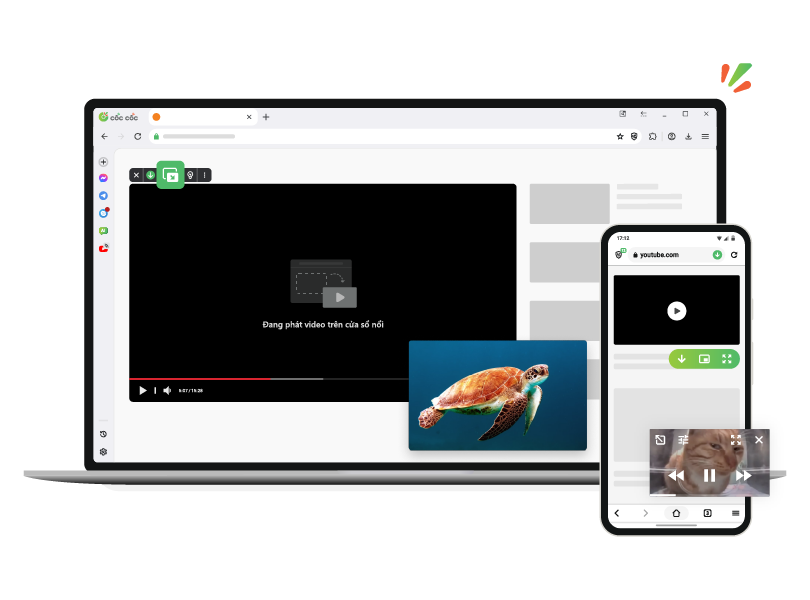
Pin YouTube video in a mini view
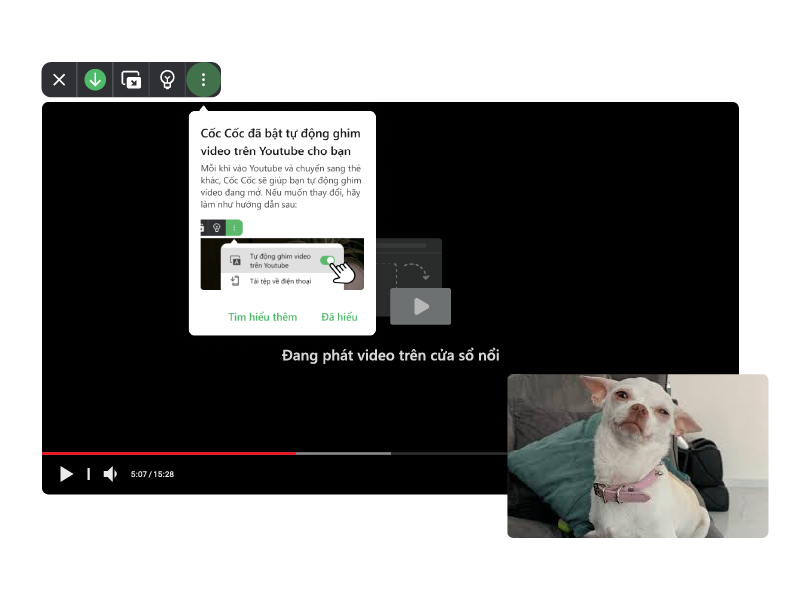
Enjoy Auto PiP on YouTube completely free
On desktop, every time you visit YouTube and switch to another tab, Cốc Cốc will automatically pin the video for you. Keep watching in a floating window at the corner of your screen and never miss a moment!
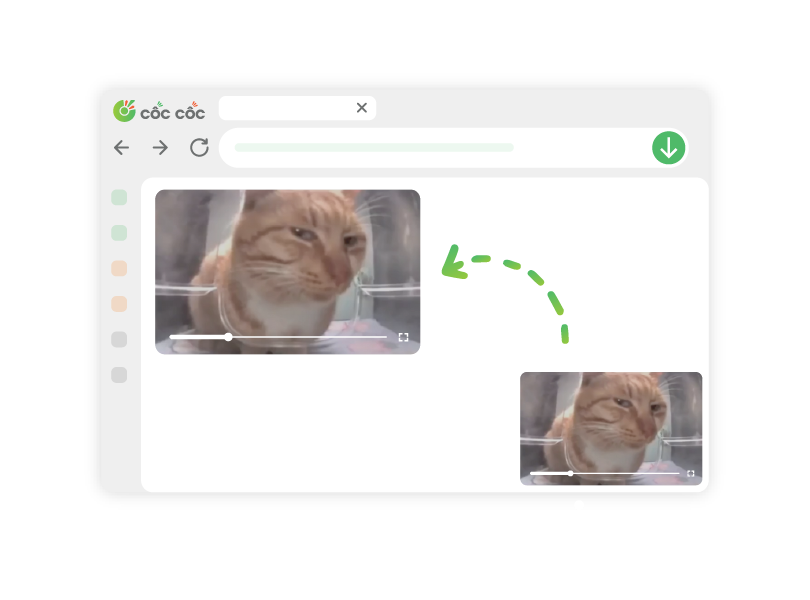
Easily customize your watching experience
Minimize, maximize and move the floating window to desirable position. Pause, play and adjust video seeking to avoid interfering with what you're doing.
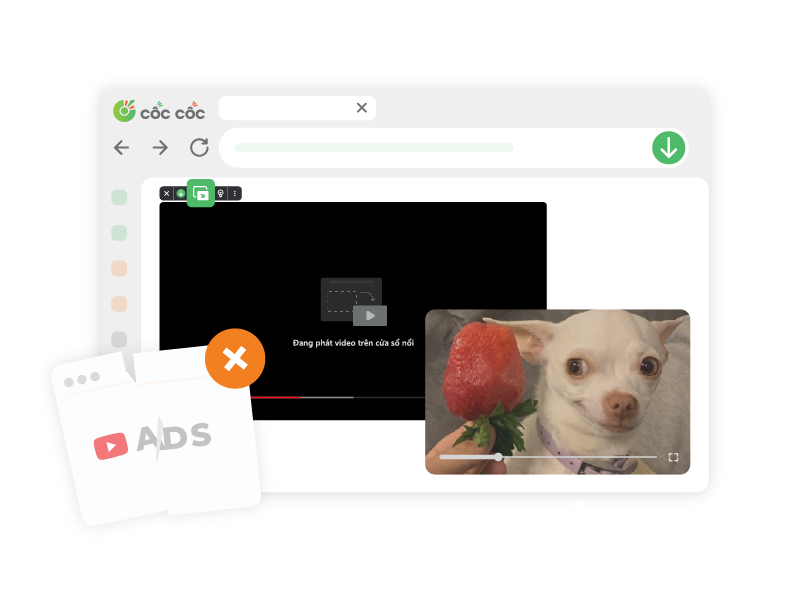
Watch video, listen to music without interruption on YouTube
Cốc Cốc supports Pin video feature on both desktop and mobile. Continue watching when switching to another tab or application, and enjoy Background play with the screen off on mobile. Seamless experience, no annoyance with Adblock.

Download Cốc Cốc browser today
Watch video in Picture in Picture mode
How to pin video with Cốc Cốc

Open YouTube
Simply click the Pin video button on the media panel.

Customize the floating window
Drag and drop to resize and move to the position you want.

Back to tab
Close PiP and go back to YouTube tab without changing video status.
What users say about Cốc Cốc
ajsgansg
App Store
Thanks to this application, I can play games and watch video at the same time, thanks to the app founder.

gianganhtuan
App Store
Listen to YouTube music without worrying about wasting battery power. I listen to music by Pip all the time.
TheLQM
Play Store
I can comment while still listening to music. Not like other apps. Keep it up, Cốc Cốc.
Frequently asked questions
What is PiP or Pin video?
PiP (or Picture in Picture) is the mode that allows you to watch the video in a mini window at the corner of the screen. This window always floats on top of other applications. Therefore, you can continue watching video while doing other things inside and outside the current application.
On Cốc Cốc desktop and mobile browser, you can easily open any video in PiP mode with Pin video feature. Particularly, when you pin video on mobile, you can also enjoy music with background play.
On Cốc Cốc desktop and mobile browser, you can easily open any video in PiP mode with Pin video feature. Particularly, when you pin video on mobile, you can also enjoy music with background play.
How to pin video on computer?
Pin video is a built-in feature on Cốc Cốc desktop browser, allowing you to watch video and do other things at the same time. To pin video, you have 02 ways:
- Instruction 1: Click Pin video icon on the media panel (appearing above the video play).
- Instruction 2: Click Control music, video and more icon on the right of the address bar > click Pin video icon.
- Instruction 1: Click Pin video icon on the media panel (appearing above the video play).
- Instruction 2: Click Control music, video and more icon on the right of the address bar > click Pin video icon.
How to pin video on mobile?
Pin video is a built-in feature on Cốc Cốc desktop browser, allowing you to continue watching video when using another app and play audio in background.
To pin video, simply tap Pin video icon on the media panel (appearing below the video play).
To pin video, simply tap Pin video icon on the media panel (appearing below the video play).
How to enable/disable Auto Pin video on mobile?
To enable/disable Auto Pin video, you can try 02 following ways:
- Instruction 1: Tap Browser menu (≡ icon) > select Settings > select Pin & Play Videos in Background > enable/disable Auto Pin video.
- Instruction 2: Tap the Auto Pin icon on the floating window.
- Instruction 1: Tap Browser menu (≡ icon) > select Settings > select Pin & Play Videos in Background > enable/disable Auto Pin video.
- Instruction 2: Tap the Auto Pin icon on the floating window.
How to resize or move pinned video?
To resize the floating window, follow these instructions:
- On desktop: Drag and drop the corner of the window.
- On mobile: Pinch with two fingers on any position of the window.
To move the floating window, click and hold the window then drag and drop it to your preferred position.
- On desktop: Drag and drop the corner of the window.
- On mobile: Pinch with two fingers on any position of the window.
To move the floating window, click and hold the window then drag and drop it to your preferred position.
How to unpin video or exit Picture in Picture mode?
To unpin video or exit Picture in Picture mode, you can follow these steps:
- On desktop: Click Close button (✕ icon) or Back to tab button on the floating window.
- On mobile: Click Close button (✕ icon) on the floating window.
- On desktop: Click Close button (✕ icon) or Back to tab button on the floating window.
- On mobile: Click Close button (✕ icon) on the floating window.
How to pause, seek video in Picture in Picture mode?
Pinned video can follow you to any screen or apps. You can control video on the floating window as follows:
- Pause/play: Press ❚❚ or ▶.
- Seek: Press Rewind or Fast-forward each 10 seconds (iOS) or each 15 seconds (Android).
- Pause/play: Press ❚❚ or ▶.
- Seek: Press Rewind or Fast-forward each 10 seconds (iOS) or each 15 seconds (Android).
How to play music in background with Pin video feature?
To play music in background on Cốc Cốc, you can follow these steps:
1. Open Cốc Cốc on mobile.
2. Visit the website containing the song, podcast you want to hear.
3. Tap Pin video icon on the media panel (appearing below the video player).
4. Turn off the screen and continue listening to music in the background.
Note:To continue listen to other songs without turning on the screen, enable the Autoplay button on YouTube before you pin video and turn off the screen. Or, you can also pause, seek or switch songs right on the lock screen.

Can't find what you're looking for?
Please visit our Support center to find instructions or chat with our staff.
Please visit our Support center to find instructions or chat with our staff.