


The best adblock browser
Cốc Cốc browser has built-in Adblock feature, allowing you to browse the web faster and more securely. Now even more powerful with Adblock Plus technology and the ability to bypass anti-adblocker in video player.

Comprehensive adblocking ability

Support all platforms
Block ads on mobile, PC and TV

Load pages 2X faster
Save time, battery and mobile data for what's important

Enhance your protection
Protect you against unforeseen threats from malicious ads
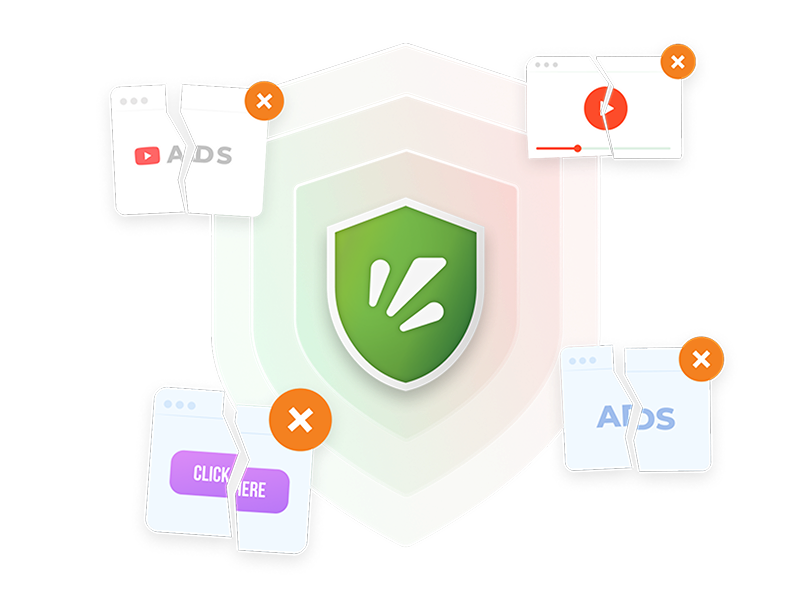
Block pop ups and all annoying ads
Cốc Cốc automatically detects and blocks ads that interrupt your browsing experience, including autoplay video ads, pop-up tabs, ads with flashing animation or covering the content you are viewing.
Block malicious ads
Cốc Cốc can filter out intrusive ads or ads that contain link to spread malware and disable most of the factors that track your browsing activities.
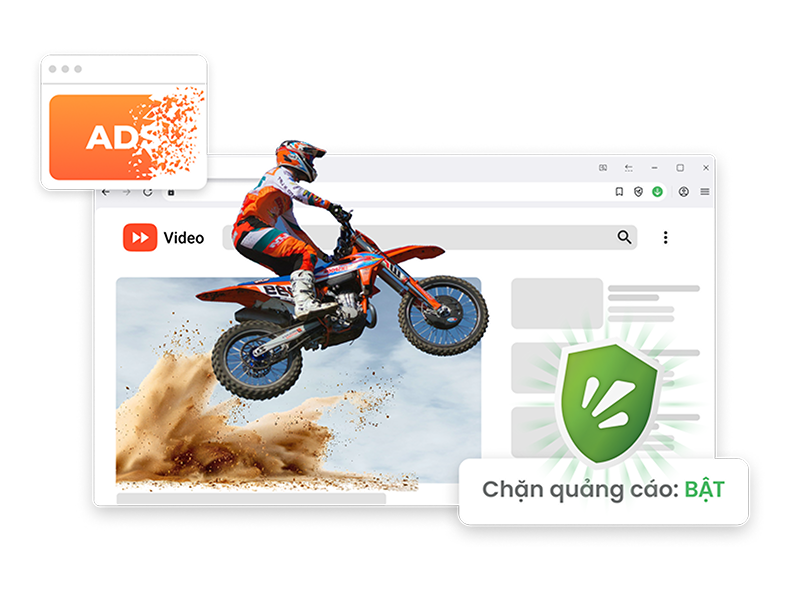
Download Cốc Cốc browser today
Enjoy ad-free web browsing experience
Built-in feature that's easy to use

Block ads automatically
The feature is enabled by default. No need to install another adblocker.

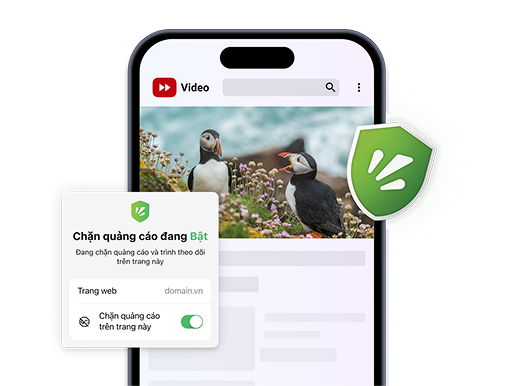
Customize for a specific page
Click on Shield icon to enable/disable adblock on a specific website.

Customize adblock settings
Select adblocking modes. Allow acceptable ads and whitelisted websites.

What users say about Cốc Cốc
Anonymous
App Store
Good application, ads block is a plus point.

Anonymous
App Store
I don't get bothered by ads when using Cốc Cốc.
Minh Khả
Play Store
Great! I never get bothered by ads anymore when surfing the web.
Đào Thắng
Play Store
Great, there is no interruption from ads and web loading never lags.
Hương Diệu
Facebook Group
I like using Cốc Cốc because there are less annoying ads.
Hoang Rito
Play Store
I like Cốc Cốc because of the ad block function. When reading news or watching movies, I'm never bothered by ads.
Frequently asked questions
Cốc Cốc can block which types of ads? Why Cốc Cốc is the best adblock browser?
The Adblock feature on Cốc Cốc is constantly optimized, allowing the browser to automatically detect and effectively block many types of ads, including:
- By characteristic: Malicious ads, annoying ads
- By format: Video ads with autoplay sound, banner ads that cover the content you are viewing, ads with flashing animations
- By mechanism: Pop-up ads, pop-under ads, redirect ads.
- By characteristic: Malicious ads, annoying ads
- By format: Video ads with autoplay sound, banner ads that cover the content you are viewing, ads with flashing animations
- By mechanism: Pop-up ads, pop-under ads, redirect ads.
Why Cốc Cốc is the best adblock browser?
Compared to other adblock browsers or extensions, Cốc Cốc's Adblock feature has the following pros:
- Built-in feature, completely free to use and no need to install other extensions from third parties.
- Supported on multiple platforms, including PC, mobile and Android TV.
- Easy to customize adblocking modes and whitelist.
- Integrating the latest technology from Adblock Plus and more optimal with constant improvement from Cốc Cốc, allowing to block malicious annoying ads effectively and bypass anti-adblocker.
- Built-in feature, completely free to use and no need to install other extensions from third parties.
- Supported on multiple platforms, including PC, mobile and Android TV.
- Easy to customize adblocking modes and whitelist.
- Integrating the latest technology from Adblock Plus and more optimal with constant improvement from Cốc Cốc, allowing to block malicious annoying ads effectively and bypass anti-adblocker.
What are acceptable ads?
Acceptable ads are ads that are safe and do not interfere with the content you are viewing.
On Cốc Cốc, we might still allow acceptable ads as an income source for Cốc Cốc and other entities to provide free services for everyone. However, we want to emphasize that Cốc Cốc does not support the distribution of malicious and annoying ads.
To change the permission relating to acceptable ads, please follow the following steps.
On desktop:
1. On your computer, open Cốc Cốc browser.
2. On the upper right, click Adblock icon (the shield).
3. On the Adblock diaglog box, click Settings icon (the gear).
4. Turn on/off Allow Acceptable Ads.
On mobile:
1. On your phone or tablet, open Cốc Cốc app.
2. At the bottom right corner, tap Bottom toolbox icon (hamburger menu) > Settings.
3. Tap Ads blocker.
4. Turn on/off Allow Acceptable Ads.
On Cốc Cốc, we might still allow acceptable ads as an income source for Cốc Cốc and other entities to provide free services for everyone. However, we want to emphasize that Cốc Cốc does not support the distribution of malicious and annoying ads.
To change the permission relating to acceptable ads, please follow the following steps.
On desktop:
1. On your computer, open Cốc Cốc browser.
2. On the upper right, click Adblock icon (the shield).
3. On the Adblock diaglog box, click Settings icon (the gear).
4. Turn on/off Allow Acceptable Ads.
On mobile:
1. On your phone or tablet, open Cốc Cốc app.
2. At the bottom right corner, tap Bottom toolbox icon (hamburger menu) > Settings.
3. Tap Ads blocker.
4. Turn on/off Allow Acceptable Ads.
How to block ads on computer
To have an ad-free browsing experience on your computer, you can add adblocking extensions to your browser or use a browser with built-in adblocker like Cốc Cốc.
When you have installed Cốc Cốc, adblock feature is enabled by default. You can surf the web without ads immediately, no need for third-party extensions.
When you have installed Cốc Cốc, adblock feature is enabled by default. You can surf the web without ads immediately, no need for third-party extensions.
Adblocking modes on Cốc Cốc desktop browser
Cốc Cốc desktop browser offers you 02 adblocking modes:
- Standard: Cốc Cốc will only blocks ads that annoy users. This mode is enabled by default when you install Cốc Cốc.
- Strict: Cốc Cốc will blocks ads more comprehensively. However, this mode might cause the interface of some websites to break, become blank or miss some components.
To change the adblocking mode, please follow these steps.
1. On your computer, open Cốc Cốc browser.
2. On the upper right, click Adblock icon (the shield).
3. On the Adblock diaglog box, click Settings icon (the gear).
4. Select Standard or Strict mode.
- Standard: Cốc Cốc will only blocks ads that annoy users. This mode is enabled by default when you install Cốc Cốc.
- Strict: Cốc Cốc will blocks ads more comprehensively. However, this mode might cause the interface of some websites to break, become blank or miss some components.
To change the adblocking mode, please follow these steps.
1. On your computer, open Cốc Cốc browser.
2. On the upper right, click Adblock icon (the shield).
3. On the Adblock diaglog box, click Settings icon (the gear).
4. Select Standard or Strict mode.
How to block pop up ads on mobile
For most mobile browsers, you can block pop-up ads by enabling Block Pop-ups in the app's Settings.
However, even when you have turned this option on, you can still encounter pop-under ads or auto-redirect ads. These ads are those that unexpectedly take you to other sites in new tabs (beside your viewing tab), or switch you to another app, when you scroll or touch any position on the browsing screen.
Better for you, Cốc Cốc Mobile especially optimizes the capability to block pop-under ads on top popular websites in Vietnam. Browse the web with Cốc Cốc Mobile now to experience the difference.
However, even when you have turned this option on, you can still encounter pop-under ads or auto-redirect ads. These ads are those that unexpectedly take you to other sites in new tabs (beside your viewing tab), or switch you to another app, when you scroll or touch any position on the browsing screen.
Better for you, Cốc Cốc Mobile especially optimizes the capability to block pop-under ads on top popular websites in Vietnam. Browse the web with Cốc Cốc Mobile now to experience the difference.
How to disable adblock?
In some cases, websites may ask you to turn off Adblock before they allow you to access their content.
To turn off Adblock on Cốc Cốc, you can click on the Adblock icon (the shield) on the address bar > Turn off Block ads on this page.
For YouTube, Cốc Cốc has been updating new solutions to bypass anti-adblocker. Please update to the latest version to continue watching YouTube without turning off Adblock.
Read more in the article How to turn off Adblock on desktop and mobile.
To turn off Adblock on Cốc Cốc, you can click on the Adblock icon (the shield) on the address bar > Turn off Block ads on this page.
For YouTube, Cốc Cốc has been updating new solutions to bypass anti-adblocker. Please update to the latest version to continue watching YouTube without turning off Adblock.
Read more in the article How to turn off Adblock on desktop and mobile.

Can't find what you're looking for? Please visit our Support center to find instructions or chat with our staff.