


Download X (Twitter) video much simpler with Cốc Cốc
Downloading videos has never been more convenient! Seamlessly download any video on X (Twitter) with the Fast download feature on Cốc Cốc browser.

Free X (Twitter) video downloader
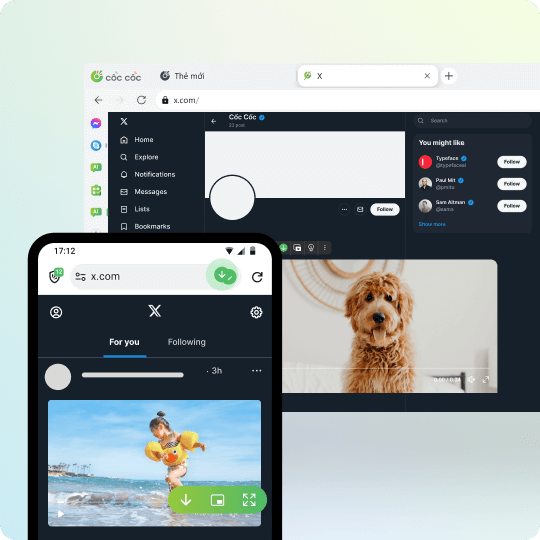
Download X (Twitter) videos on any device
To download X (Twitter) videos, you can use the Download video feature on Cốc Cốc browser. This feature helps you download X (Twitter) videos on various devices such as computers, phones (iOS & Android), and tablets in just a few clicks

Download X (Twitter) private videos
Cốc Cốc allows you to download any X Twitter video, including private X Twitter videos. Easily download videos shared in messages, groups, or videos posted by private accounts.
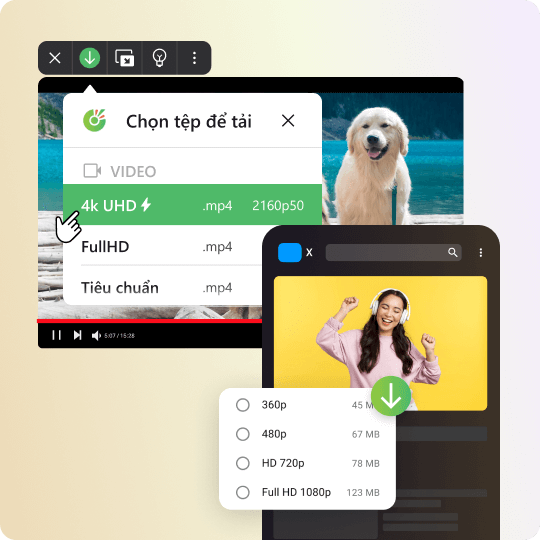
Download high-quality X videos
Enjoy the experience of downloading high-quality X videos for free, without limitations. With the Fast download feature, you can easily choose the resolution of the video before downloading, including 4K HD, Full HD, or HD.
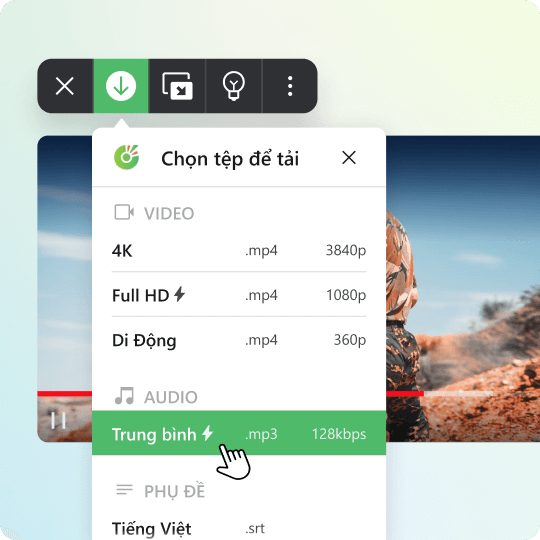
Download X (Twitter) audio
Download music, download audio directly on X (Twitter) without using other tools. Coc Coc will help you save audio (MP3 format) in X (Twitter) videos to your phone and computer.
How to download X (Twitter) videos to your phone

Open the website containing video
Click on Download button on the address bar or media panel.

Select file to download
Choose the download format and quality.

Manage downloaded files
Open Downloads page to find, open the file, or delete it permanently.
How to download X (Twitter) videos to your computer

Open the website containing video
Click on Download button on the address bar or media panel.

Select file to download
Choose the download format and quality.

Manage downloaded files
Open Downloads page to find, open the file, or delete it permanently.
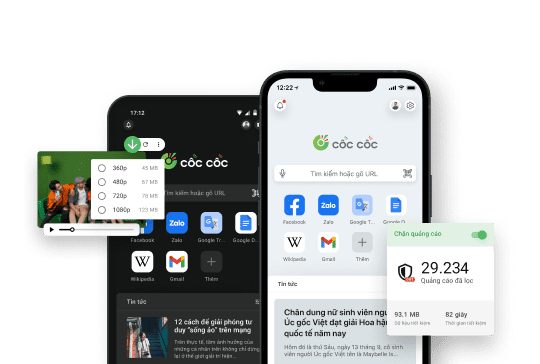
Download the Cốc Cốc browser
to download Twitter video in high-quality, for free
What users say about Cốc Cốc
Nam Trần
Play Store
I like CocCoc the most because it's very convenient to download videos.

Hiếu Minh
App Store
Good browser, can still be used on weak devices, even downloads videos when watching movies on the web that only a few other browsers have, this is very good, blocks ads well, truly a Vietnamese product with Japanese quality
Ẩn danh
Facebook Group
Great. Downloading videos is very convenient
Frequently asked questions
Which tool should I use to download X (Twitter) videos?
Compared to other tools, Cốc Cốc helps you download X (Twitter) videos and music faster and more conveniently:
- Download X (Twitter) videos to your phone, computer, or tablet.
- Download X (Twitter) videos completely free, without installing any third-party software.
- Supports downloading X (Twitter) private videos.
- Offers multiple formats and quality options, easily convert from .mp4 to .mp3 files.
- Allows downloading videos from most popular websites, including X (Twitter), Facebook, YouTube, and TikTok.
- Downloads videos up to 8 times faster, saving you more time than other X (Twitter) video download tools.
- Download X (Twitter) videos to your phone, computer, or tablet.
- Download X (Twitter) videos completely free, without installing any third-party software.
- Supports downloading X (Twitter) private videos.
- Offers multiple formats and quality options, easily convert from .mp4 to .mp3 files.
- Allows downloading videos from most popular websites, including X (Twitter), Facebook, YouTube, and TikTok.
- Downloads videos up to 8 times faster, saving you more time than other X (Twitter) video download tools.
How to download X Twitter video to a computer
You can follow one of the two instructions below to download video from X Twitter:
Instruction 1: Use the media panel
1. On the Cốc Cốc desktop browser, access the link of the Pinterest video you want to download.
2. Hover over the video player.
3. On the media panel (appears above the video player), choose the video format and download quality.
4. Click Download (down arrow).
Instruction 2: Use the Download button on the address bar
1. Go to the link of the Pinerest video you want to download.
2. Click on the Download icon (down arrow) on the address bar.
3. In the dialog box, select the video format and download quality.
4. Click Download (down arrow).
Learn more in the article How to download video and audio with the Cốc Cốc browser.
Instruction 1: Use the media panel
1. On the Cốc Cốc desktop browser, access the link of the Pinterest video you want to download.
2. Hover over the video player.
3. On the media panel (appears above the video player), choose the video format and download quality.
4. Click Download (down arrow).
Instruction 2: Use the Download button on the address bar
1. Go to the link of the Pinerest video you want to download.
2. Click on the Download icon (down arrow) on the address bar.
3. In the dialog box, select the video format and download quality.
4. Click Download (down arrow).
Learn more in the article How to download video and audio with the Cốc Cốc browser.
How to download X Twitter video to a phone
To download X (Twitter) videos to your phone or table with Cốc Cốc browser, follow these steps:
1. On the Cốc Cốc mobile browser, go to the link of the Pinterest video you want to download.
2. Tap the Download icon (down arrow) on the media panel or the address bar.
3. Choose the video format and download quality.
See more in the article How to download videos and music to your phone with the Cốc Cốc browser.
1. On the Cốc Cốc mobile browser, go to the link of the Pinterest video you want to download.
2. Tap the Download icon (down arrow) on the media panel or the address bar.
3. Choose the video format and download quality.
See more in the article How to download videos and music to your phone with the Cốc Cốc browser.
How to download high-quality X (Twitter) video?
The Fast download feature allows you to choose the format and resolution of the video. To download high-quality X (Twitter) videos in HD (720p), Full HD (1080p), 2K (1440p), or 4K (2160p), simply choose the video file resolution before downloading.
If the media panel does not display the desired resolution, it means that the video file does not support the resolution you need.
If the media panel does not display the desired resolution, it means that the video file does not support the resolution you need.
Can I download X (Twitter) private videos with Cốc Cốc?
Yes. If you can view the video on your X (Twitter) account (for example, videos shared by a private account), you can download it by clicking the Download icon that appears above the video.
How to download X (Twitter) audio
On the Cốc Cốc desktop browser, to download only the sound of a X (Twitter) video, or download X (Twitter) mp3, you will need to download the video in .mp3 format instead of the usual .mp4. To download a X (Twitter) video in .mp3 format, follow these steps:
1. On the Cốc Cốc desktop browser, go to the link of the X (Twitter) video you want to download.
2. Hover over the video player.
3. On the media panel (which appears above the video player) or the address bar, click Download (↓ icon).
4. From the dropdown list, select the .mp3 file format and proceed with the download.
1. On the Cốc Cốc desktop browser, go to the link of the X (Twitter) video you want to download.
2. Hover over the video player.
3. On the media panel (which appears above the video player) or the address bar, click Download (↓ icon).
4. From the dropdown list, select the .mp3 file format and proceed with the download.
Can I download GIFs with the Fast download feature?
No. Currently, the Fast download feature on Cốc Cốc browser does not support downloading GIFs.
This feature is designed to support video and audio file downloads from most websites but does not include GIF formats. To download GIFs from Twitter, you may use other supporting tools or software.
This feature is designed to support video and audio file downloads from most websites but does not include GIF formats. To download GIFs from Twitter, you may use other supporting tools or software.
Where is my downloaded video saved?
'On computer
Videos will be saved in the default download folder or the download folder that you select right before downloading the file. To find the folders where you saved your downloaded videos, please follow these steps:
1. Open Cốc Cốc on your computer.
2. At the top right corner, click the Downloads icon (the outermost ↓ icon).
3. Search for the video in the download list > click Show in folder.
- On iPhone, iPad: Videos will be saved in Cốc Cốc app (in Downloads). To save downloaded video to your device, please follow these steps:
1. On your iPhone or iPad, open Cốc Cốc app.
2. At the bottom right corner, tap Browser menu icon (≡ icon) > select Downloads.
3. In Downloads folder, select Video.
4. Search for the music in the download list > tap More icon (⁝ icon) > tap Share.
5. Select Save Video (save to Photos) or Save to Files.
- On Android phone or tablet: Video will be saved in Cốc Cốc app (in Downloads) and on your device (in Gallery and My Files).
Videos will be saved in the default download folder or the download folder that you select right before downloading the file. To find the folders where you saved your downloaded videos, please follow these steps:
1. Open Cốc Cốc on your computer.
2. At the top right corner, click the Downloads icon (the outermost ↓ icon).
3. Search for the video in the download list > click Show in folder.
- On iPhone, iPad: Videos will be saved in Cốc Cốc app (in Downloads). To save downloaded video to your device, please follow these steps:
1. On your iPhone or iPad, open Cốc Cốc app.
2. At the bottom right corner, tap Browser menu icon (≡ icon) > select Downloads.
3. In Downloads folder, select Video.
4. Search for the music in the download list > tap More icon (⁝ icon) > tap Share.
5. Select Save Video (save to Photos) or Save to Files.
- On Android phone or tablet: Video will be saved in Cốc Cốc app (in Downloads) and on your device (in Gallery and My Files).
Does Cốc Cốc limit the number of videos I can download?
No. You can download as many X (Twitter) videos as you like without any limit.

Can't find what you're looking for?
Please visit our Support center to find instructions or chat with our staff.
Please visit our Support center to find instructions or chat with our staff.